 This section is valid for all product flavors.
 This section is valid for all product flavors.
Vector data that comes from data sources such as WebMap Publisher Service or Web Feature Service can be filtered in the map window. The filter can be set separately for every feature class layer. Objects can be filtered in the map window using the attributes available for them.
To define an attribute filter for a displayed layer:
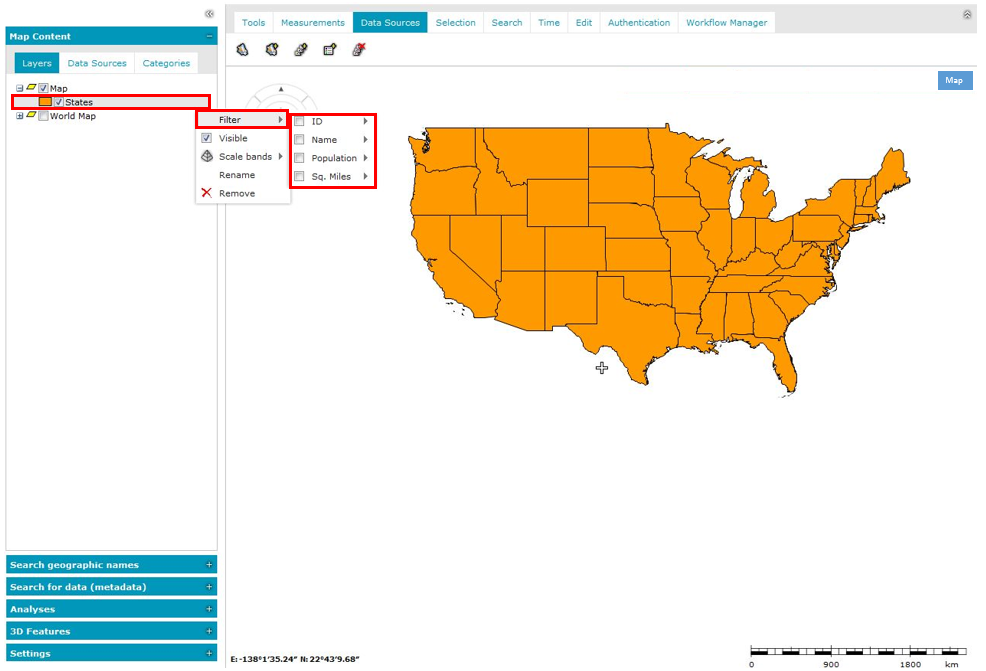
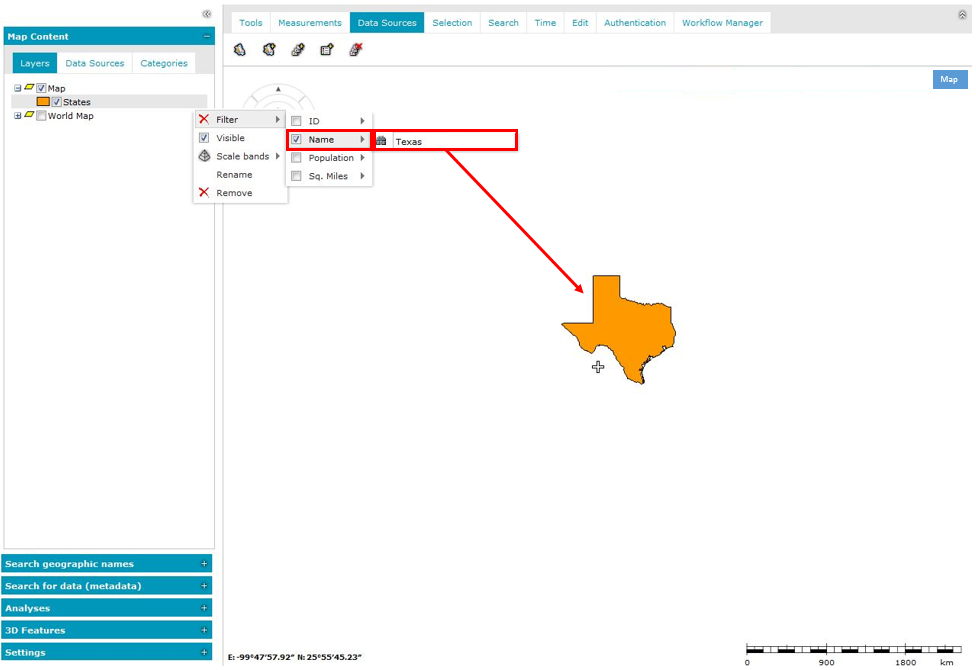
Attribute operators such as greater than and less than can be available for some attributes (other than text type). Depending on the attribute type, the field for providing their values may vary. For some services, for example WFS, only one operator – equal to – is available regardless of the field type.
Below is the sample of the filter field for text and integer type attributes.

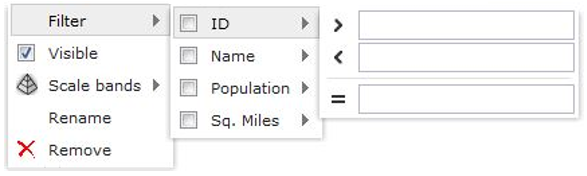
If more than one attribute is selected for filtering, the logical operator for the selected attributes is AND.
 button next to the Filter menu.