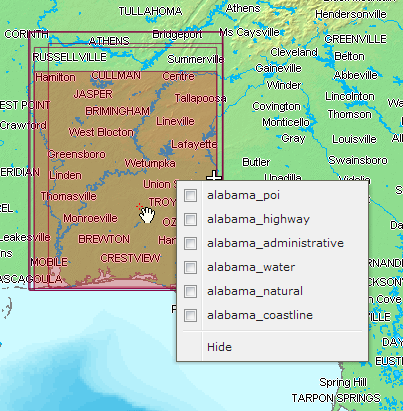
Footprints – outlines showing the data extent – for all search results from the current tab are automatically displayed on the map. When a mouse cursor is moved over any item in the Search Result panel, the corresponding footprint on the map is automatically highlighted. Whole footprints must be within view in order to be highlighted (this prevents over-flooding the map window with unwanted highlights). When clicking a footprint on the map, the results get selected in the Search Result panel. While selecting overlapping footprints, the context menu with footprint names will appear where you can check elements to be selected in the Search Result panel.
The footprints are not displayed for search result items without geometry.
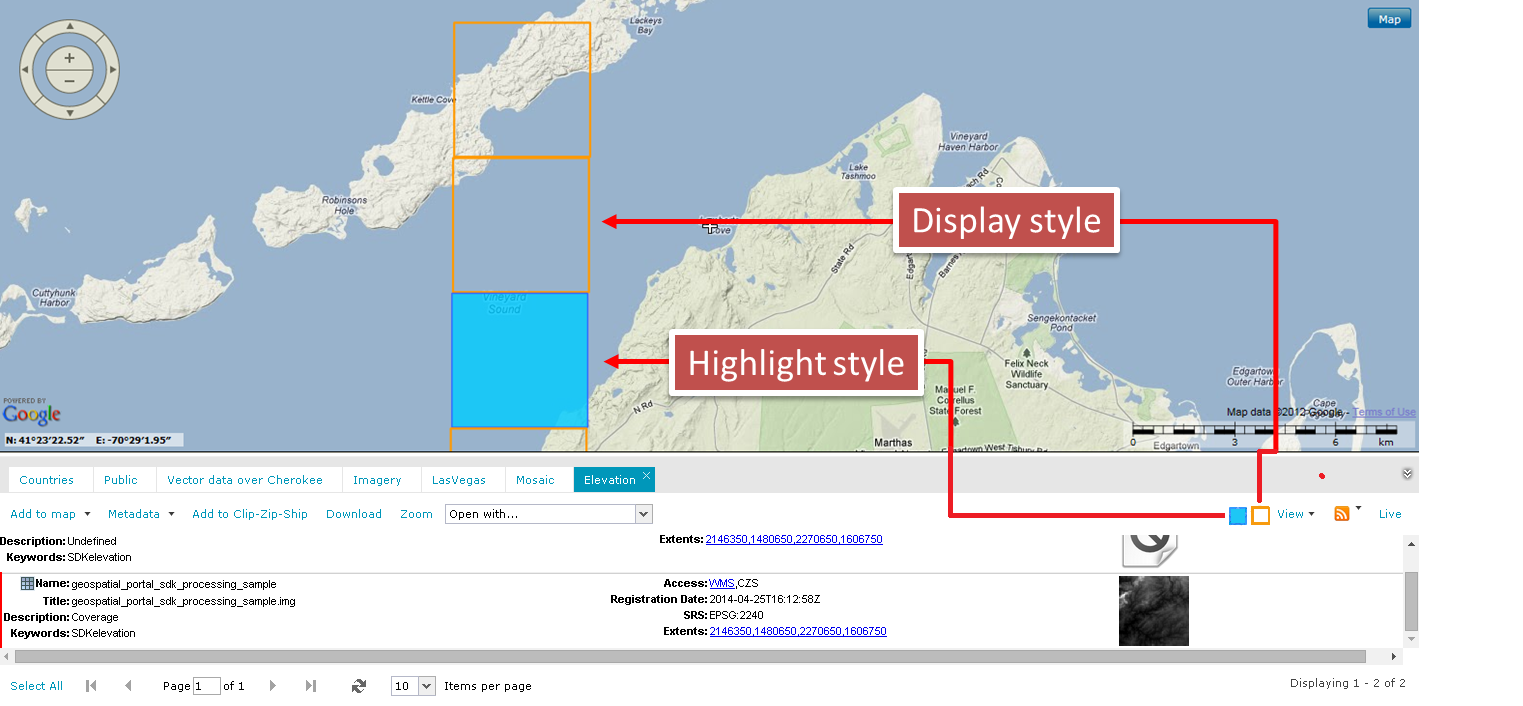
You can define the style in which footprints are displayed and highlighted. The display and highlight style for footprints can be changed with the Style dialog box, where you can define the appearance for footprint boundary and fill. Footprint style can be defined by parameters, such as line (border) width, line (border) color, line translucency, and fill color and translucency. Pattern fills are also applicable.
In order to open the Style dialog box for the footprint display style, click the Display style pictogram on the Action toolbar. To define the highlight style, click the Highlight style pictogram. Both pictograms are located on the right side of Action toolbar on the Search Result panel.
All documents in the ERDAS APOLLO Catalog have their spatial representation on the map and, by default, are marked by a red dot. You can change the display style of the spatial representation of documents using the Style dialog box for footprints display. A preview for the selected document is displayed when you click with the right mouse button on the corresponding dot on the map. The preview for the selected document is displayed in the internal Web browser window. In case there is more than one object at a given location, a menu will be displayed that allows you to select the object (document) to be viewed. This functionality works only for the objects natively supported by Web browsers such as Adobe PDF files, images, and flash. All others that are not supported by Web browser documents will be downloaded.
 For some datasets and documents shown in the Search Result Panel, an additional option, File link:Open, is available. Clicking this option in the Search Result Panel downloads a selected file or opens it automatically in applications associated with the file type. Since portal attempts to open a UNC location, make sure that access rights to the location are correct. This command can be enabled or disabled by the Geospatial Portal administrator. Documents natively supported by a Web browser will be opened in a separate Web browser tab.