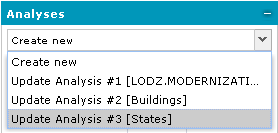
All fields for the Analyses dialog box are populated with values used for earlier performed and selected analyses.
 The button Update changes to Execute when the Create new option is selected.
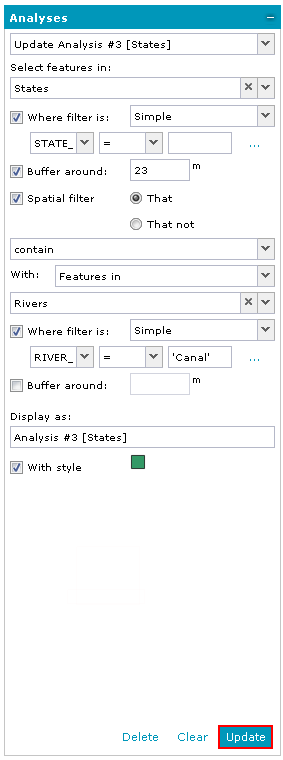
Once executed, analysis can be altered and updated according to your needs. You can freely change the parameters set for the analysis and can immediately see the updated results on the map and/or data window.
To update an analysis:
All fields for the Analyses dialog box are populated with values used for earlier performed and selected analyses.
The button Update changes to Execute when the Create new option is selected.
It is also possible to select an analysis to update directly from the Map Content tab. For a selected analysis layer from the context menu, select the Update analysis option. The Analyses tab will be automatically opened with all fields filled in for the selected query.
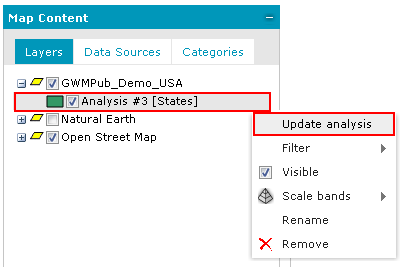
All executed analyses are kept in Geospatial Portal (unless you refresh the application) and can be modified and/or displayed later, even if they were earlier removed from the Map Content and/or Data Window.
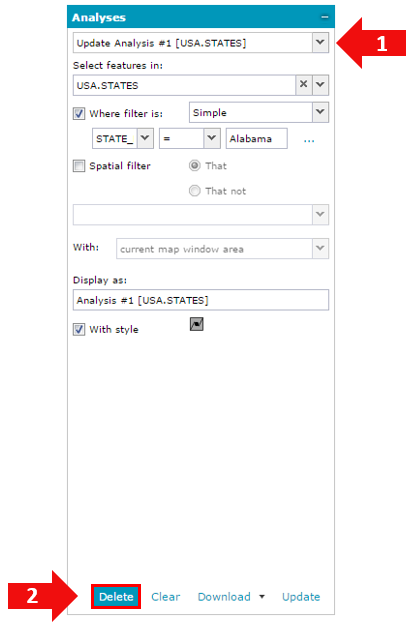
Analyses that are no longer needed can be deleted permanently. In order to do this, select the analysis to be removed, and click Delete on the bottom of the dialog box.
The Delete button is available on the form only if an analysis is selected from the list.
In order to create a new analysis based on an existing one: