Keywords
Returns items whose name, keywords, or description matches one of the requested keywords.
The Web Client automatically appends a "wildcard" to the end of each keyword you enter in this field. For example, if you enter "Al" as a keyword, the search would return any item with an ID or keyword that begins with Al, and your search results could include "Alabama", "Alaska", and "Alexandria".
Type, Data Type, and Availability
These parameters specify the kind of information that you are looking for. Data can be retrieved using different search criteria and filtered by Type, Data type, and Availability.
You can search for following object types:
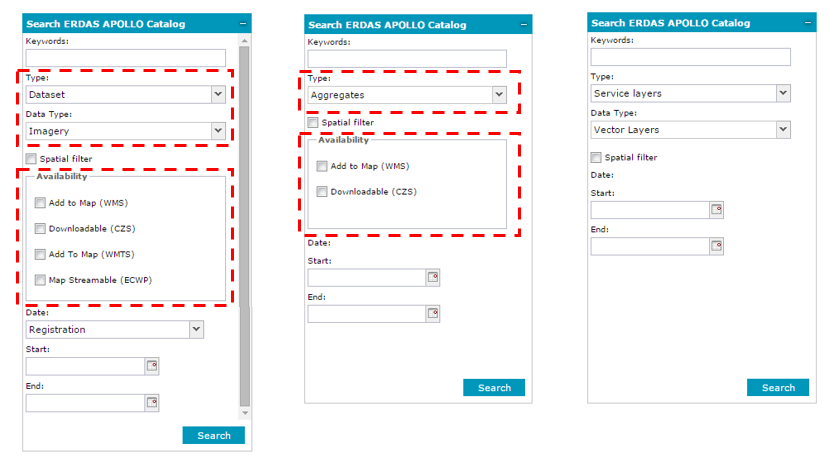
There are two filtering combo boxes: Type and Data Type. Selecting one of the object types shown above from the Type pull down list will enable the Data Type field, if applicable. Availability specifies whether the results should be accessible through ECWP streaming, maps through the WMS or WMTS interface, or coverages through the CZS interface. The table below shows the dependency tree of elements displayed in Search Panel drop downs and associated search options:
|
|
|
Any |
NA |
NA |
Dataset (default)
|
Any (default) |
Add to Map (WMS) Downloadable (CZS) |
Imagery |
Add to Map (WMS) Add to Map (WMTS) Map Streamable (ECWP) Downloadable (CZS) |
|
Vector |
Add to Map (WMS) Downloadable |
|
Documents |
Downloadable |
|
Aggregates |
NA |
Add to Map (WMS) Downloadable |
Dataset & Aggregate |
NA |
Add to Map (WMS) Downloadable |
Service layers
|
Any |
NA |
Map Layers (WMS) (default) |
||
Vector Layers (WFS) |
||
Coverage Layers (WCS) |
Below is a sample view of Search ERDAS APOLLO Catalog dialog boxes with different Availability options, depending on the chosen Type and Data Type:
Date
The Date field represents different things, depending on what type of items you are searching for.
The types of dates you can search for:
The values for those dates are set in two fields: Start and End.
Spatial filter – This option allows you to limit search results spatially.
Two methods of spatial filtering are available:
When Draw on the map is selected as a spatial filtering option, five buttons for drawing and one for clearing geometry appear in the form. To draw a geometry, first select the geometry type by clicking the appropriate button in the Draw geometry group, and then draw a geometry for the first object on the map. A click finishes inserting a vertex for the first object, and a double click finishes inserting an object (for points features, a single click finishes inserting objects). Geometry for the next object of the same type can now be drawn, and so on. Right clicking exits from the drawing mode.
The point geometry can be drawn in two ways: by direct indication of the point on the map or by entering the coordinates of a point. When the method of inserting a point by coordinates is selected, two additional fields for providing coordinates appear on the dialog box. Coordinates must be entered in units appropriate for the currently used SRS.
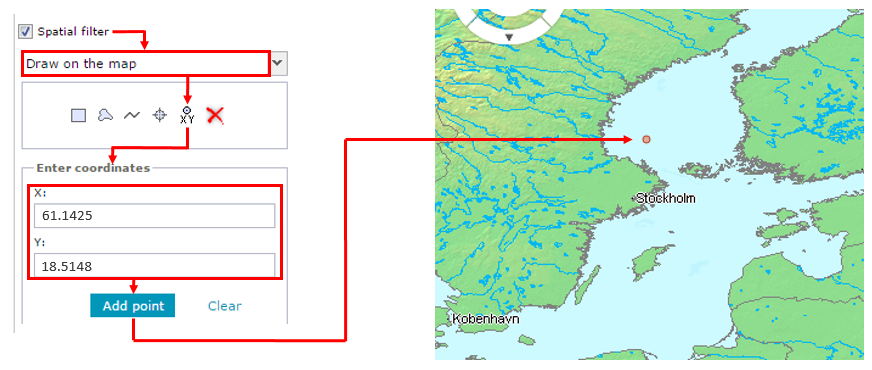
Multiple geometries of one type can be used as a spatial filter. For example, you may draw multiple points on the map and then use those points to filter the search results.
 Draw on the map is unable to draw mixed multi-geometries, for example, lines and points or areas.
To remove drawn geometry, click Clear geometry  .
.
The method of spatial filtering can be chosen from the drop-down list, which is active only if the Spatial filter option is enabled.
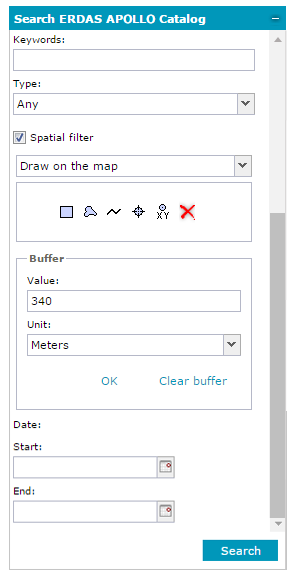
Buffer - Additionally, you can set the buffer for each object that serves as a spatial filter. When defining a buffer for a spatial search, two parameters must be provided: buffer unit, which is selected from the Unit drop-down list, and buffer value, which is set in the Value field. After providing those two parameters, click OK (in the Buffer option group) to apply the settings for defined buffer.
Clear buffer - Removes the defined buffer from the map. The defined buffer for a spatial filter is shown on the map. In case the option Draw on the map is selected as a spatial filter, when the buffer is applied, the geometry for drawn objects is changed by a specified buffer. However, if the option Select feature from the map is selected as a spatial filter and you apply a buffer to the selected features, a new temporal geometry showing the feature extended by the specified buffer will be drawn on the map. A buffer cannot be applied when Only in visible map area is selected as a spatial filter method.
Having provided all required information, click Search to find the data. Search results are displayed on the bottom of the Search Result window, where you can quickly add selected data to the map or show the extent for the found data.
The search form can be extended with additional, custom search criteria fields defined by the administrator. For more help on custom fields, if they occur, contact the Geospatial Portal administrator.