 This section is valid for all product flavors.
 This section is valid for all product flavors.
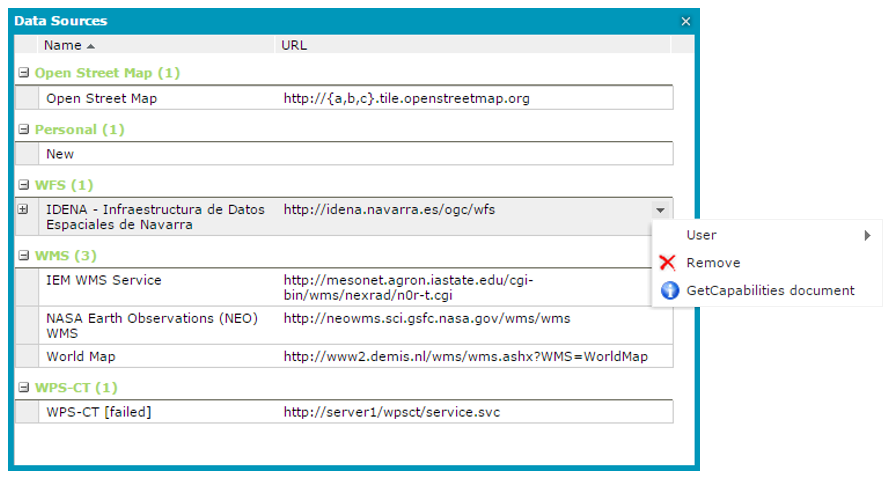
The Show data sources  command, which is available on the Tools toolbar, shows all the services currently connected to Geospatial Portal and available for you. The URL to the service and the type of source are presented in the window with defined data sources information, such as the data source name.
For every data source that is displayed in the Data Sources window, you can use a context menu to remove the selected data source from Geospatial Portal. Removing a data source causes the corresponding layers from the map window and the entries from the Map Content to disappear automatically.
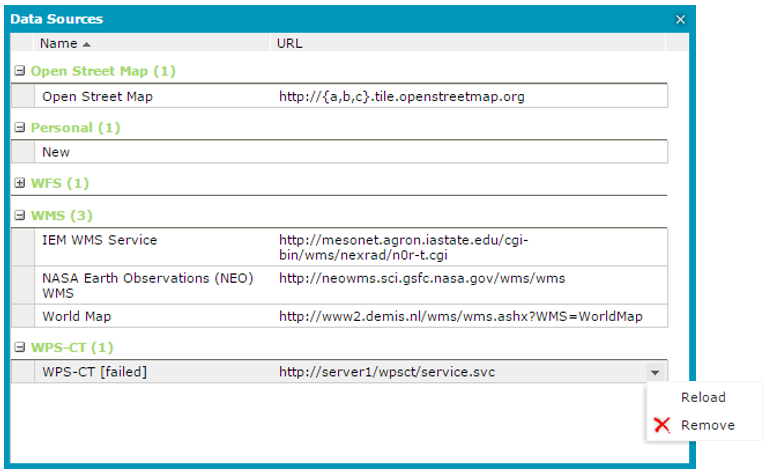
Data sources that failed to initialize are marked in red. Instead of the service name, the service type with [failed] text is also displayed in the Name column. For uninitialized and marked data sources in the context menu, the Reload and Remove commands are available. Selecting the Reload command will result in an attempt to reload the service. The Reload command is available only for uninitialized data sources.
For sources such as WFS (Web Feature Service), WMS (Web Map Service), and CSW (Catalog Service for Web), the GetCapabilities document is available in the right-click menu. For the selected service, you can read the GetCapabilities document in a new window. For WFS services, you also can read the Describe Feature Type document for every feature class served by a given service.