
Each Search Result tab contains a top-action toolbar with a certain set of action controls either in the form of text buttons or combo boxes. These actions can be performed on the ERDAS APOLLO Catalog data, selected in the Search Result panel. Selected items are indicated by a red, vertical line on the left side. Default possible actions for Geospatial Portal are described below.
Add To Map
Adds the selected element to the Map Content tab and the map window. You can add more than one result to the Map Content tab and the map window.
Selected item or items can be added to the map using different protocols. These protocols are WMS, WMTS, and ECWP. Notice that for some data, the list of available protocols may be limited.
In order to add selected items to the map using the desired protocol, open (by clicking the down arrow) the context menu for the Add to map button, and select the protocol from the list. The data will be added to the map with the selected protocols.
For OGC WFS services, the option Add as Vector is used to add data from WFS services to the map.
You can add an item straight to the map without selecting the protocol by clicking Add to map (without expanding the context menu). In this case, the application determines the best protocol for the selected items.
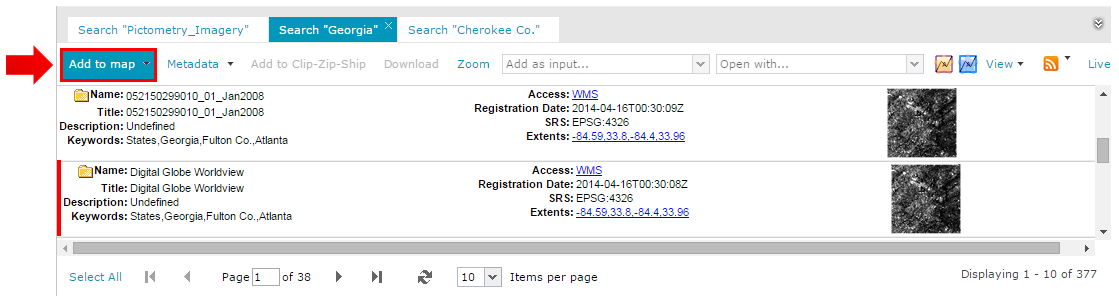
For services such as OGC WMS or OGC WFS, the Register in Portal, Display All, and Display Selected commands are available under the Add to map button. The Display All command registers and adds the selected service to the Map Content, while Display selected registers the service and opens the Add to legend dialog box, where you can choose features to be displayed.
Metadata
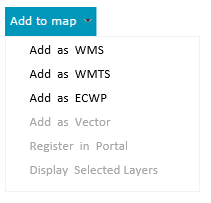
The Metadata button on the search action toolbar groups all commands for displaying and downloading metadata for elements from the search panel.
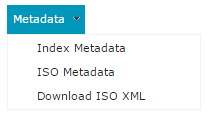
Index Metadata
Displays, in a separate window, the whole set of coverage metadata for the selected search results. Metadata for each selected element is displayed in a separate tab.
ISO Metadata
Displays a window containing the original ISO 19115 metadata using ISO 19139 XML encoding. This document can contain additional metadata. Metadata for each selected element is displayed in a separate tab.
Download ISO XML
Downloads an XML file containing ISO Metadata.
Add To Clip-Zip-Ship
This action adds the selected items from the Search Result panel to the Clip-Zip-Ship tab, where the Clip-Zip-Ship process can be performed. (For more information, refer to the Clip-Zip-Ship section.)
Download
Sends a message to the provided email address with a link to download the original file. If multiple search results are selected, a separate link for each file to download will be included in the sent message. The email address must be entered into the dialog box that appears after clicking Download. This functionality applies only to datasets and coverages. If the file to download exceeds the size defined by the Administrator (by default it is 100 MB), the information that the file is too big to download will be displayed.
Zoom
You can select one or more search results and choose the Zoom command from the toolbar to change the map range so that it fits to the extents of all selected items. The range is changed to the maximum possible zoom level that maintains each selected result extents in the view. This action works for all search results that have proper extents available.
Open with...
This command opens selected search results in other third-party applications. The drop-down list contains the available applications in which the selected item can be opened. By default, the options Open in IMAGINE and Open in Google Earth are available, but the list of possible applications may vary depending on Geospatial Portal configuration. For further information about this functionality configuration, contact your Geospatial Portal administrator.
Open in IMAGINE
This action makes it possible to open selected search results externally in IMAGINE. When performed, you are presented an ERDAS IMAGINE Shoebox (*ipx) file to be opened directly from the browser in the ERDAS IMAGINE application.
Open in Google Earth
This action makes it possible to open selected search results externally in Google Earth. When performed, you are presented a *.kml file to be opened directly from the browser in a Google Earth application.
Open in Plain Text
This action allow to save queries from the Search Result panel to a text file. When performed, a text file containing a direct link to the ERDAS APOLLO Catalog for every selected item in the Search Result panel is returned. This option can be optionally disabled in Geospatial Portal. For more information, contact your Geospatial Portal administrator.
Display style & Highlight style
You can define the style in which footprints are displayed and highlighted when you move the mouse cursor over a footprint. The display and highlight style for footprints can be changed with the Style dialog box, on which you can define the appearance for a footprint boundary and fill. Footprint style can be defined by parameters such as line (border) width, line (border) color, line translucency, and fill color and translucency. Pattern fills are also applicable. In order to open the Style dialog box for the footprint display style, click the Display style pictogram . To define highlight style, click the Highlight style
  pictogram.
View
This option allows you to set the thumbnail or detailed view in the Search Result panel.
GeoRSS
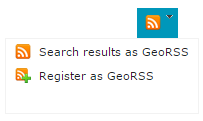
The results in the Search Result panel can be exported to GeoRSS. By doing so, the resulting GeoRSS resource will represent a feed that can alert you any time a new resource matching that query is registered in the catalog. By pressing the RSS feed icon, two actions are available:
Live
This option ensures that only elements that cover the actual map range are shown in the Search Result Panel, and the result list is updated automatically during every map move. To protect the server from overloading, the 1,5 second delay buffer is set for all outgoing requests. Click the Live button to enable this functionality. This delay can be configured using the "apolloLiveDelay" parameter in the WebClient section of the Web.config file.
Access
For some search result types, such as Datasets, MapLayers, or Vector Layers from ERDAS APOLLO, the links for Access attribute are displayed.
The table below shows the link name depending on the link type and action performed after a click.
Search result type |
Displayed link name |
After click action |
FeatureType (vector layers from ERDAS APOLLO) |
WFS |
DescribeFeature |
MapLayer |
WMS |
GetLayer |
Dataset (wmsEnabled) |
WMS |
GetLayer |
Dataset (wmtsEnabled) |
WMTS |
Display WMTS capabilities |
Dataset (czsEnabled) |
CZS |
No action |
Dataset (ecwpEnabled) |
ECWP |
Display using ecwp plugin |