 This feature requires the WebGL.
 This feature requires the WebGL.
 This section is valid for all product flavors.
With the objects being displayed in the 3D view, you can perform the shadow analysis. It is possible to see how the shadows cast by objects at a given latitude and longitude change during the day and seasons.
In order to enable and view the shadows for 3D object:
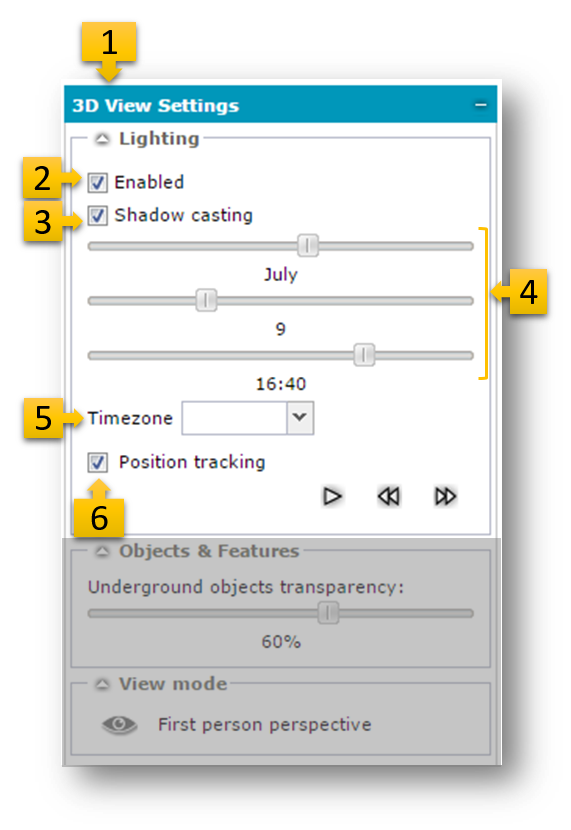
It is also possible to start the animation showing how the shadows change during the day.
To play the shadows animation:
On the 3D View Settings tab, specify the month and day using the sliders.
Specify the start time using the time slider.
To start the animation click the play  button. The animation will be played repeatedly until stopped by the user. Day and month will not be changed.
To stop the animation click the stop  button.
To speed up click the  button. To slow down the animation speed click
Below is a sample view of shadows in Geospatial Portal.
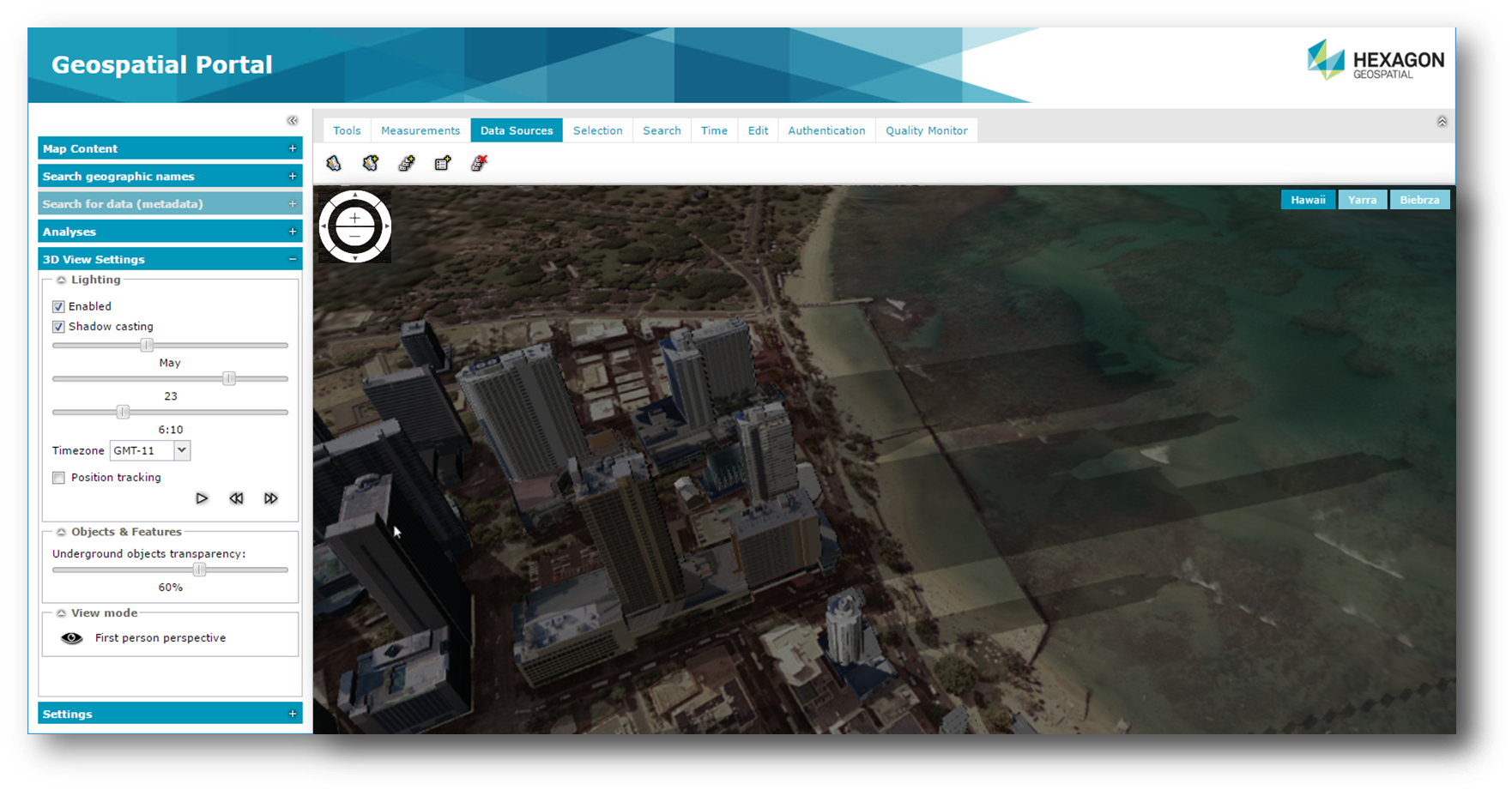
In order to increase the performance of 3D objects display in Geospatial Portal, the Shadow casting is disabled by default. Portal users willing to use Shadow casting option can enable this features manually at 3D View Settings panel. Geospatial Portal administrators can make the Shadow casting option being enabled by default. For more information contact with Geospatial Portal administrator.