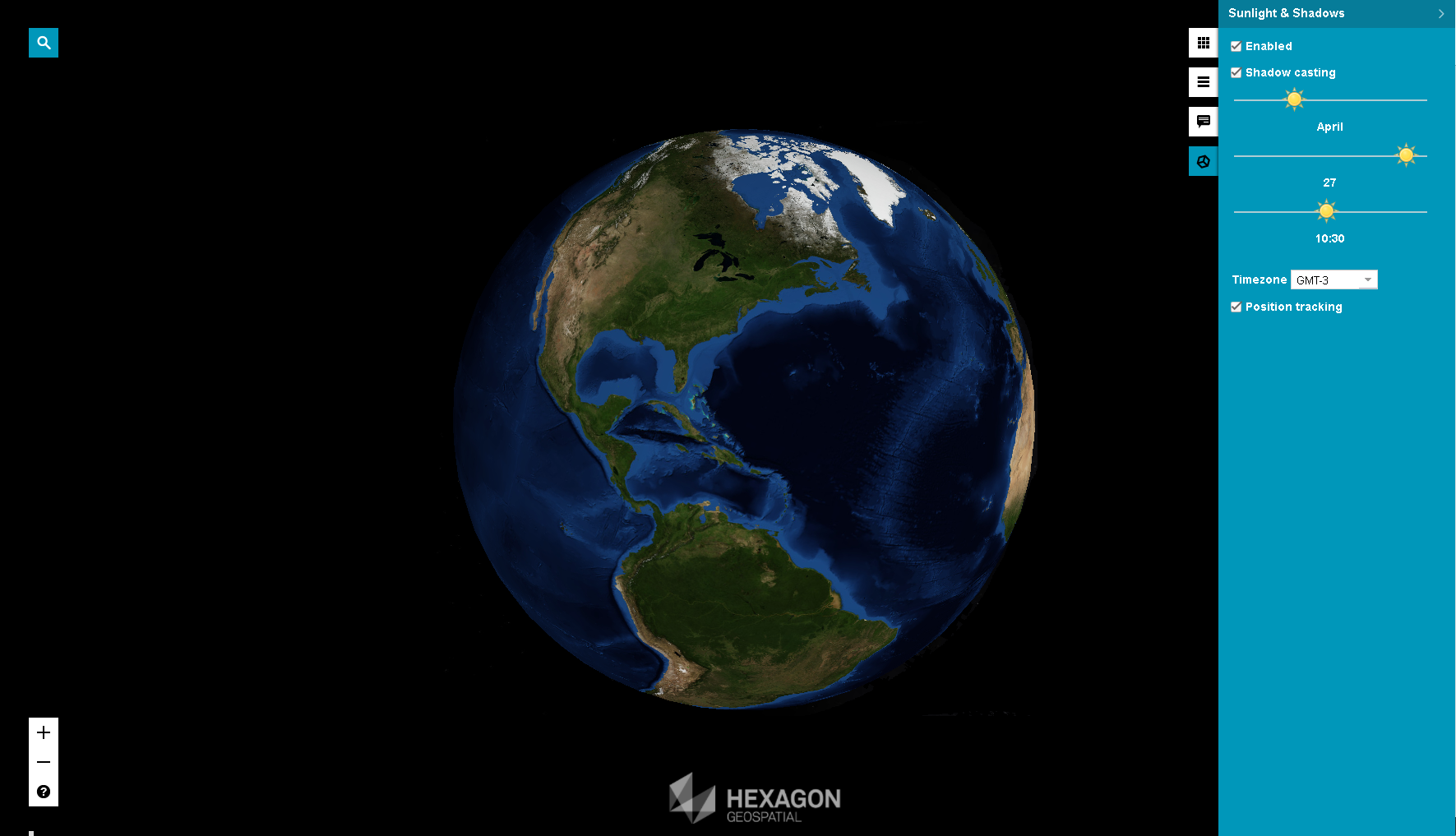
With the objects being displayed in the Consumer Portal in 3D mode, you can see how the shadows cast by objects at a given latitude and longitude are changing during the day and seasons.
In order to enable and view the shadows for 3D object:
Open 3D View Settings tab on the sidebar
Ensure that the Enabled option is selected if not enable it
Ensure that the Shadow casting option is selected, if not enable it
Use the sliders to specify the month, date and time. The sunlight and shadows will be adjusted immediately.
Select time zone (from Timezone pull down list) to which the specified date and time applies.
Check the Position tracking option if you want the time zone to be calculated and automatically adjusted basing on current position on the map (it concerns the astronomical time zones based on longitude which may not always be accurate).
3D View Settings tab is unavailable in Consumer Portal Layout run in 2D mode.
 This section is valid for all product flavors.