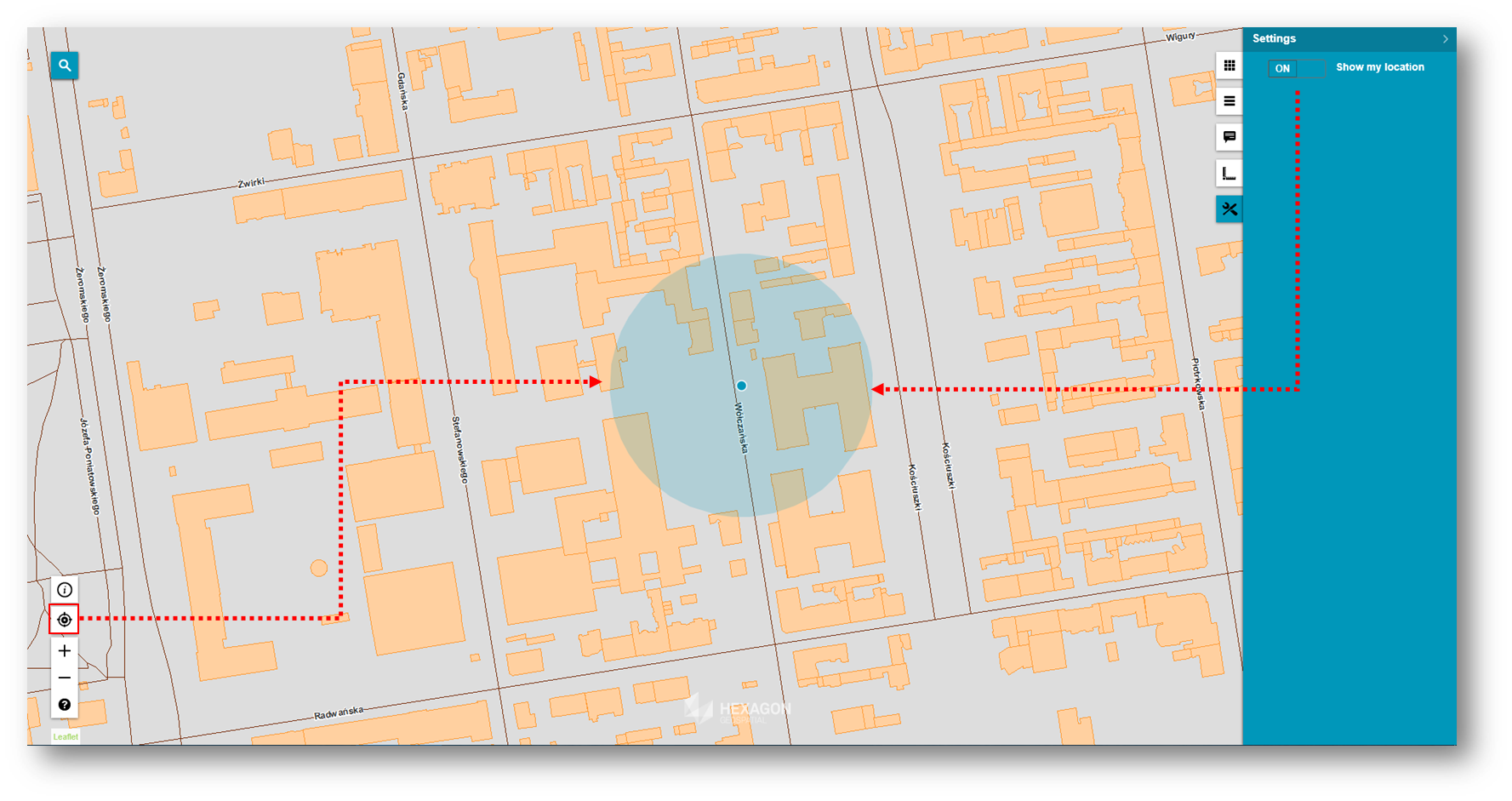
Go to My Location in Consumer Portal feature detects current location of a user, and shows it on a map.
To obtain user's location:
Click Go to my location button located near the navigation bar in the bottom left corner.
When user location is detected, the map will be centered on the user's position and circle showing the location will be displayed.
You can disable showing users location by turning off the Show my location option, on the Settings panel. (This option is turned on by default.)
While the Show my location option is turned off and you click the Go to my location button, the map will be zoomed in to the user's location, but the circle will not be displayed.
Depending whether you use mobile or desktop browser the location is provided based on GPS position or IP address calculated. To use Go to my location feature the tracking of physical location option must enabled for Web browser. Note that the geolocation works only on secure (https) servers and this is common Web browsers limitation.
 Depending whether you use mobile or desktop browser the location is provided based on GPS position or IP address calculated. To use Go to my location feature the tracking of physical location option must enabled for Web browser. Note that the geolocation works only on secure (https) servers and this is common Web browsers limitation.