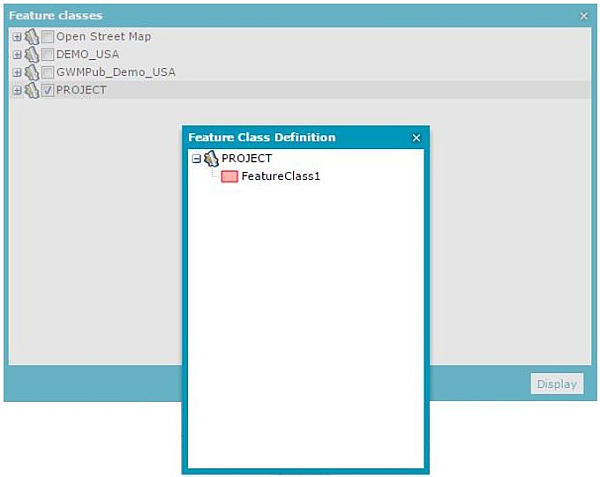
Select Display feature classes and queries . Expand the PSS to display its name.
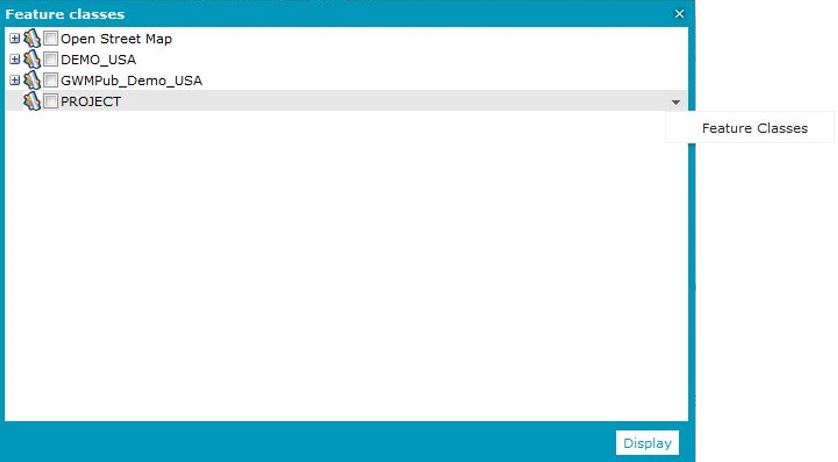
In the drop-down menu for the PSS layer, select Feature Classes.
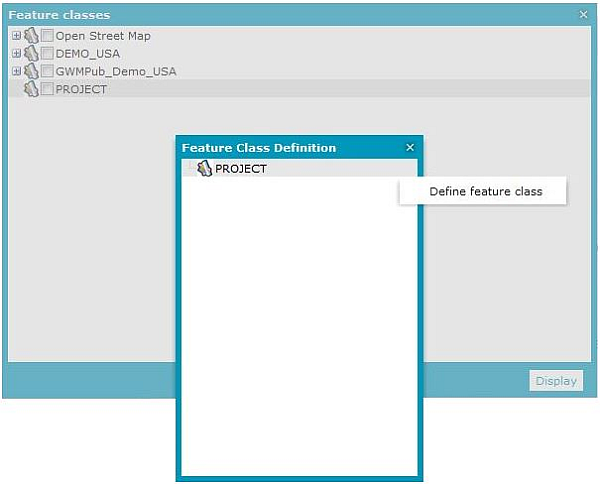
In the Feature Class Definition dialog box, select Define feature class from the drop-down menu for PSS.
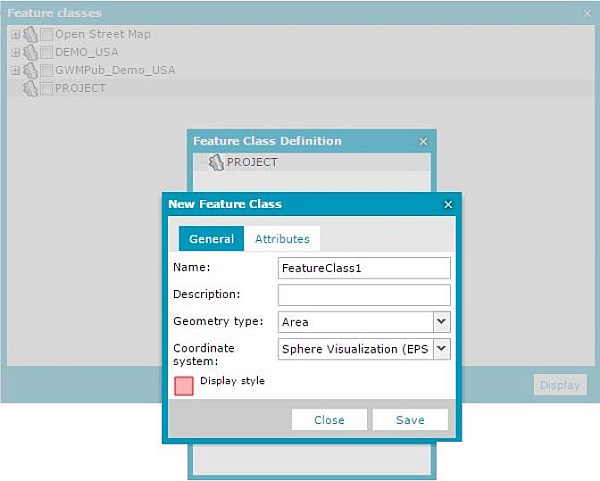
The New Feature Class dialog box opens. In the General tab, define a new Feature Class. Type a Name and a Description, select the Geometry type and Coordinate system in which the Feature Class will be active, and set the Display style.
For each personal service, you can define many feature classes, and each feature class may have a different coordinate system set for it. A single feature class of the PSS service can have only one coordinate system set. Changing a coordinate system in Geospatial Portal to be different from the one set for the feature class makes the layer for this feature class inactive.
Optional: In the Attributes tab, define the Name and attribute Type.
Click Save.
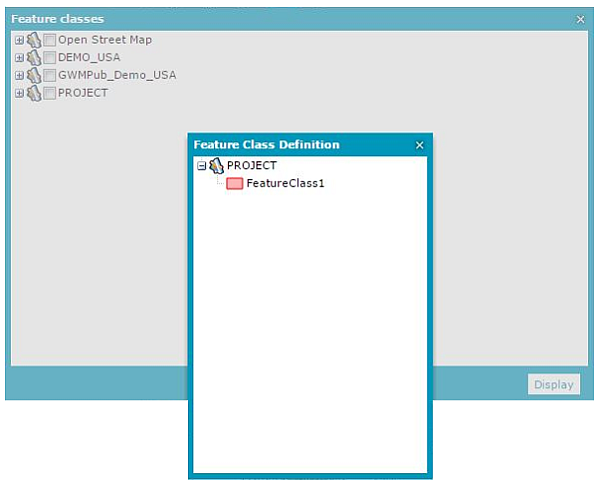
In the Feature Class Definition dialog box, expand the PSS layer and verify that all created feature classes are available.
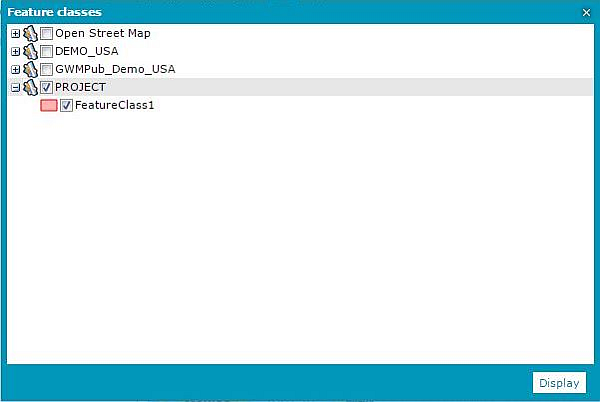
In the Feature classes window, select the PSS layer and click Display.
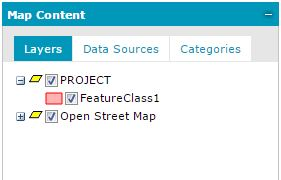
The appropriate layer appears in the Map Content > Layers tab. Expand it and verify that the created feature classes are available.
To delete created feature class:
Select Display feature classes and queries . Expand the PSS to display its name.
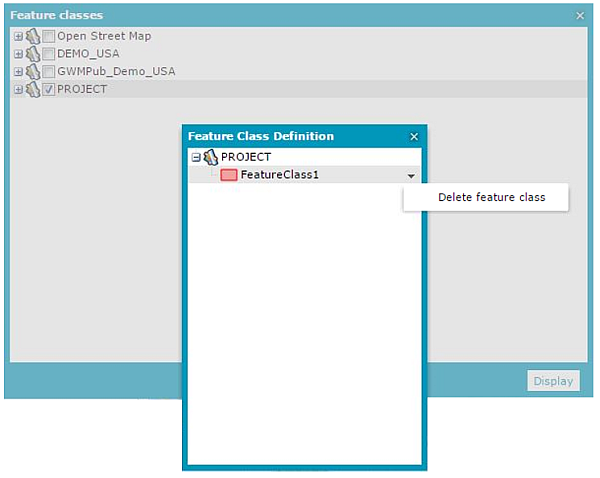
Open the Feature Class Definition dialog box.
Expand the PSS to see the feature classes.
From the context menu, select Delete feature class.
 . Expand the PSS to display its name.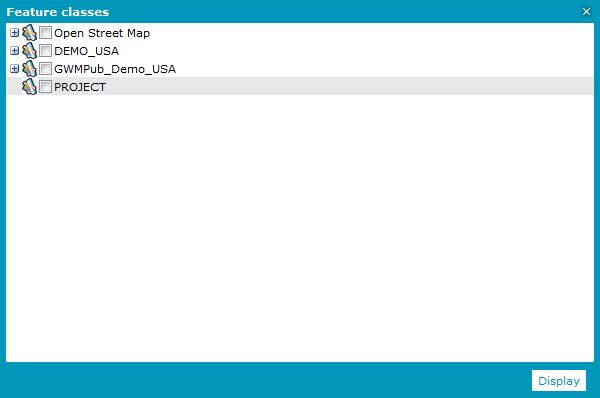
 For each personal service, you can define many feature classes, and each feature class may have a different coordinate system set for it. A single feature class of the PSS service can have only one coordinate system set. Changing a coordinate system in Geospatial Portal to be different from the one set for the feature class makes the layer for this feature class inactive.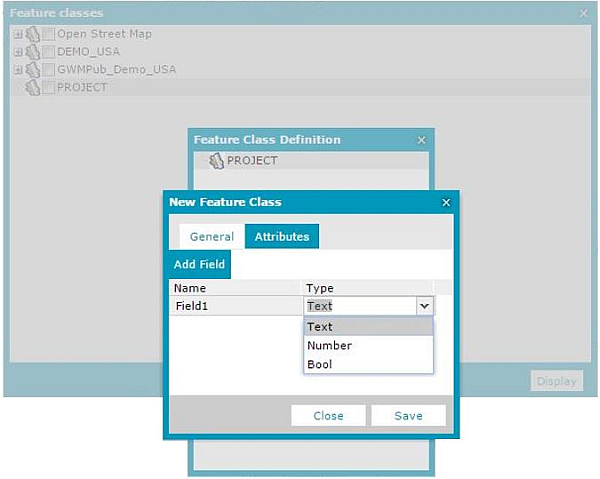
 . Expand the PSS to display its name.