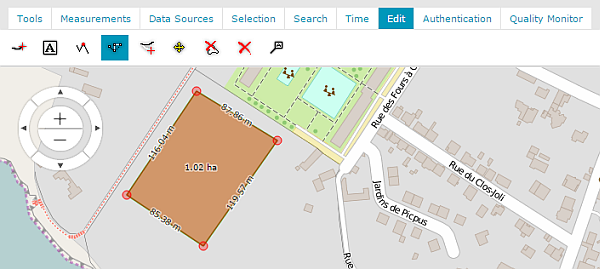
Click Edit geometry ; geometry highlights and is marked with lines and red points.
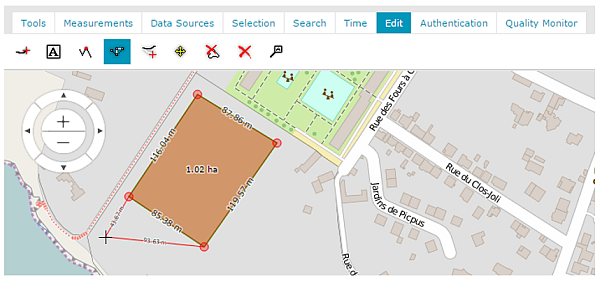
Move the cross-hair cursor to the geometry. Red lines will appear. Move the cursor and click to define a new shape for the geometry.
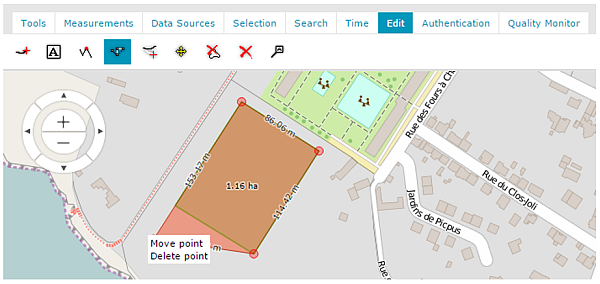
Move the cursor to one of the red points. The cursor style changes to the link-hand style. Click to display the available editing options, Move point and Delete point.
Select Move point to change the point's location. The geometry shape changes.
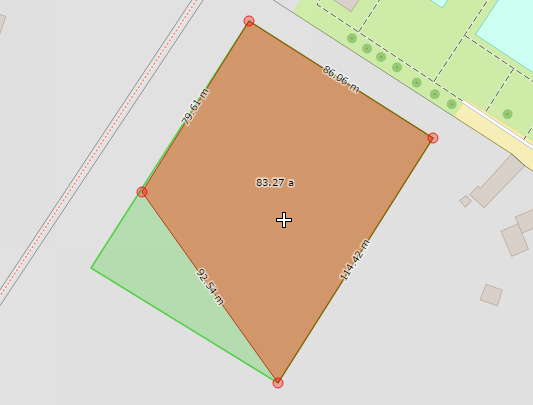
Select Delete point. The point is deleted.
To end editing move the cursor off the vertex (cursor should be in cross-hair style) and double click.
 ; geometry highlights and is marked with lines and red points.