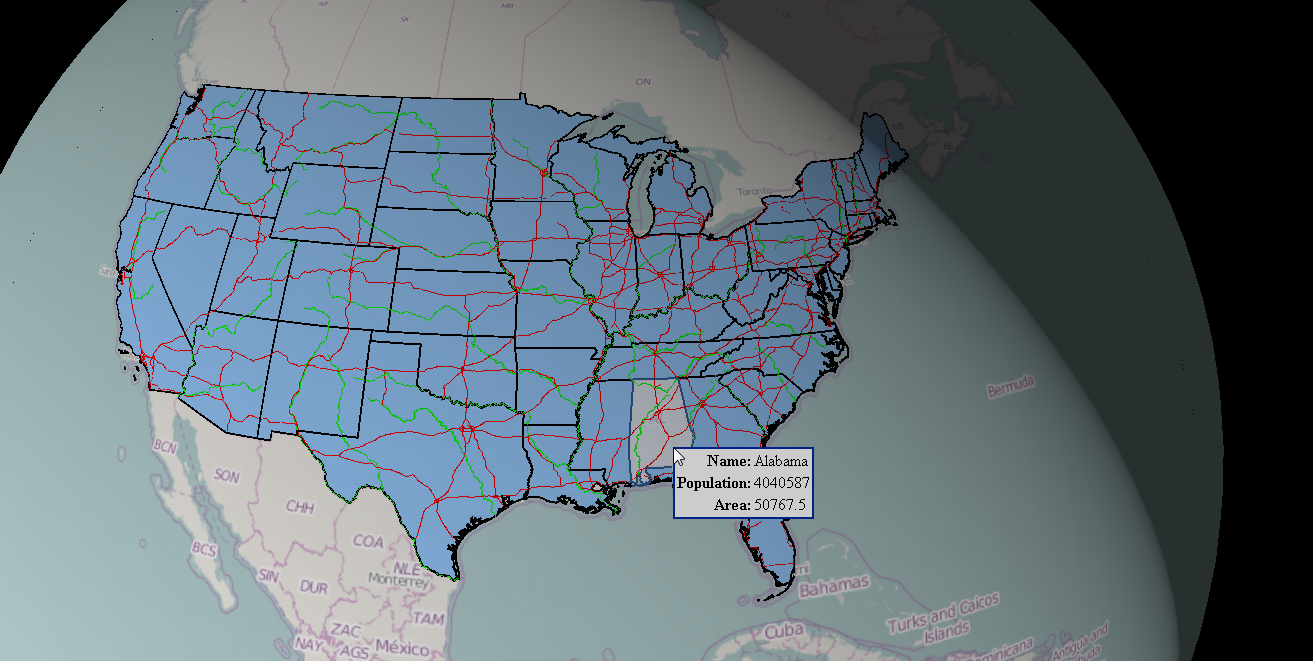
The Feature Info command lets you obtain information about the objects displayed on the map.
To open the property dialog box for a feature selected on the map, go to the Tools tab on the toolbar and click the Feature Info command. When the cursor changes to a cross hair, click on the object on the map.
For features coming from the WebMap Publisher service, a show attributes action can be performed after double clicking on a selected feature, but only on the condition that this action (show attributes) is defined for a given active layer. Depending on the WebMap Publisher configuration, two other actions after double clicking can be defined: open url or zoom to selectedfeatures. WebMap Publisher service can be configured to perform different actions for every single layer.
The feature info tool can display information for object(s), for all underlying layers, from all services or only for the object from the first top layer. The behavior of the Feature Info object is configurable. For more information see Geospatial Portal Administrator Guide or contact with your system administrator.
In case the Feature Info tool is configured to get the properties for the top first layer then for map layers in the SVG and SVGZ format, the Feature Info command returns properties for the first selected and locatable layer from the top, regardless of the overall position of this map layer in the Map Content. In Opera and Safari Web browsers, the Feature Info command will work only for the top-most layer in the Map Content (even if all map layers above are not selected and are not locatable). This limitation applies to layers in SVG or SVGZ format.
For vector features served by WFS services the tooltips with feature information may be displayed, if defined by Geospatial Portal Administrator. Tooltips with information about features can be only displayed in 3D view mode and for objects layer that is placed on top in Map Content. For more information about configuration of tooltips in 3D view please refer to the Geospatial Portal Administrator Guide or contact with your Geospatial Portal administrator.
Theme for GeoMedia WebMap WMS Feature Info HTML may vary depending on the service configuration. GeoMedia WebMap administrator can now change and adapt the style (layout, colors) of HTML Feature Info response for WMS. This configuration can be carried out only on WMS service side.For more information see Advanced Configuration of Web Services >> Configuring WMS topic in GeoMedia Web Map Administrator Guide.
 This section is valid for all product flavors.
 lets you obtain information about the objects displayed on the map.