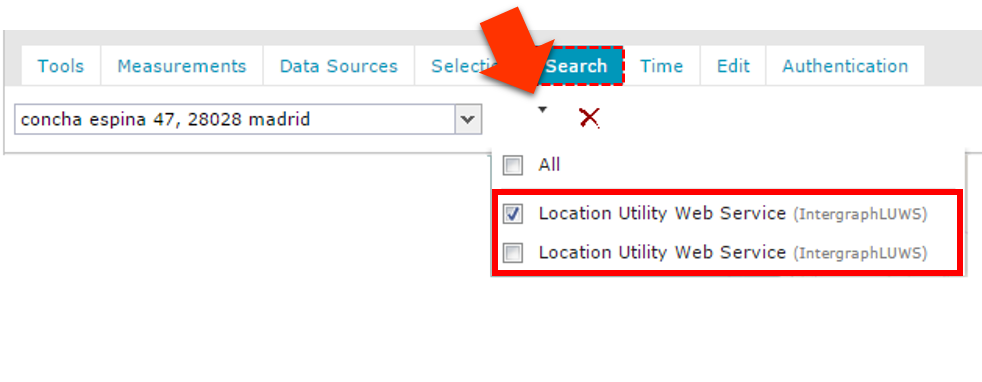
To select the service or services that Geospatial Portal uses to search, right click next to Search.
In the Search field, type a geographic name for searching objects. Hints in a drop-down list appear while you type the name.
The search results appear in the list, and pins appear on the map.
Hovering over an item in the list highlights the corresponding pin.
To change the scale of the map and to zoom to the specified location, click a name in the search results list.
To remove an entire layer of pins from map window, click on the Search tab. Only pins corresponding to the Live Search results will be removed.
There is a scale change when using the Live Search combo. The scale to be used when a result is clicked is configurable and may be changed by the Geospatial Portal administrator.
The pins for Live Search results and search results obtained by using the Search geographic names dialog box are displayed independently and with different styles.
Searching multiple services:
Having in the Geospatial Portal several services (WFS-G, LUWS or OpenLS) connected, the search action is performed using all registered and selected services and datasets available with each service. By default the service (WFS-G, LUWS, OpenLS) after registration is automatically selected to be used for search action, although user can decide which connected services to use. Results retrieved from all registered search providers are concatenated and then sorted according to their respective match score. This is done regardless of the number of search services connected and the number of datasets served by them.
In case of LUWS and/or OpenLS the results from all datasets are listed and sorted by the score, value set in minimumCandidateScore is taken into account. The number of results shown is always limited by the maxResults parmeter set in Geospatial Portal configuration (the maxResults applies to all kind of services used such as WFS-G, LUWS, OpnenLS, no matter how many services are registered and used).
For more information on defining the maxResults parameter for searches and minimumCandidateScore parameter refer to the Geospatial Portal Administrator Guide or contact with your Geospatial Portal administrator.
In order to choose services used for search:
Click the Search tab on the toolbar
Next to search field click the down arrow. The list of all available services used for search is displayed.
Only services with selected checkboxes are used for search. Select/deselect the checkboxes for given service.

 Hovering over an item in the list highlights the corresponding pin.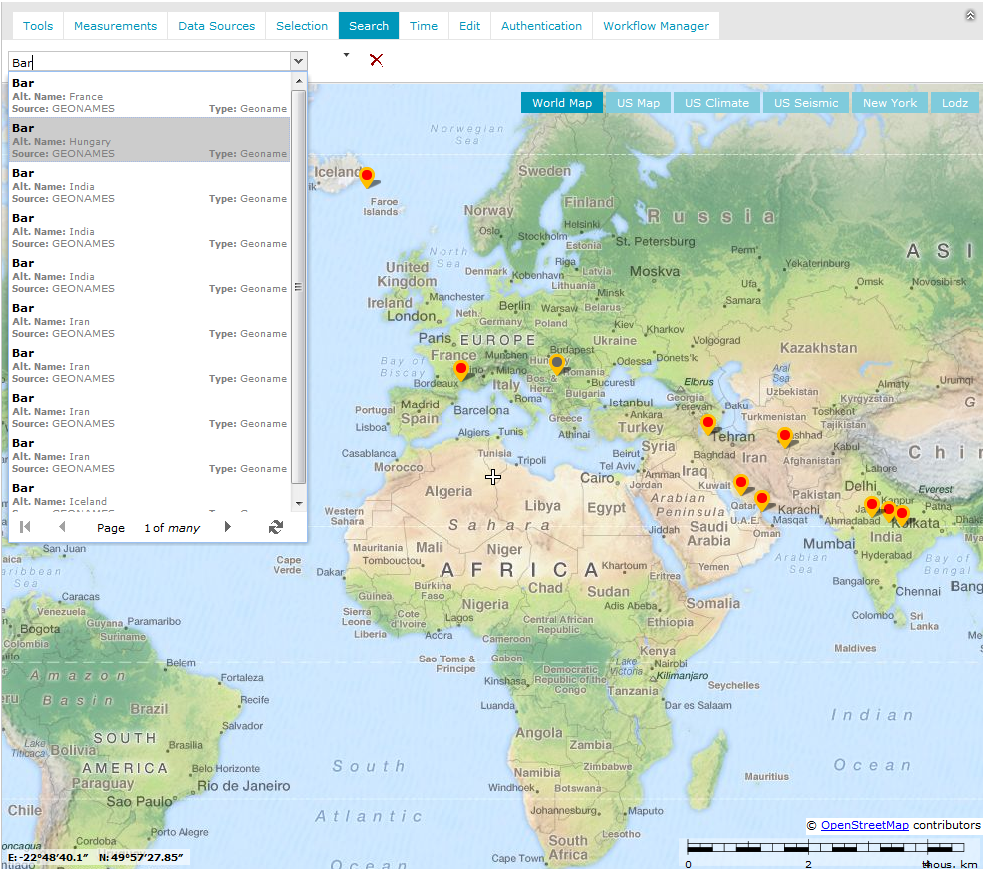
 on the Search tab. Only pins corresponding to the Live Search results will be removed.
 For more information on defining the