This section is valid for all product flavors.
 This section is valid for all product flavors.
Navigating the maps displayed in Geospatial Portal is intuitive and can be performed in many ways using different tools. Besides navigating the map with a mouse, you can use tools such as Navigator, Zoom in/out, and Zoom by rectangle, or the buttons that allow you to view the previous/next map state.
All tools for navigating the map are available on the toolbar except Navigator, which is located in the upper-left corner of the map window.
You can use one of the following methods to navigate the map in 2D mode:
 . Click and hold the left mouse button to move the map. Release the mouse button to finish shifting the map and to set a new view.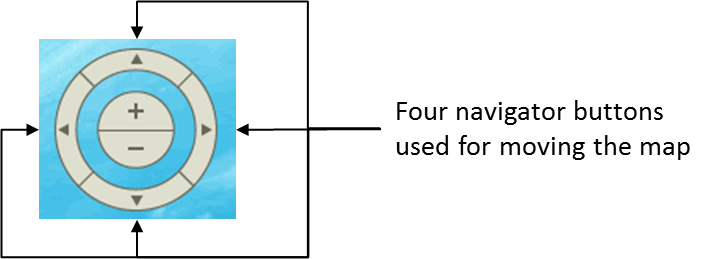
 and the Next map view
  to return to a previous map view or to go to the next map view (these buttons are not available in 3D mode).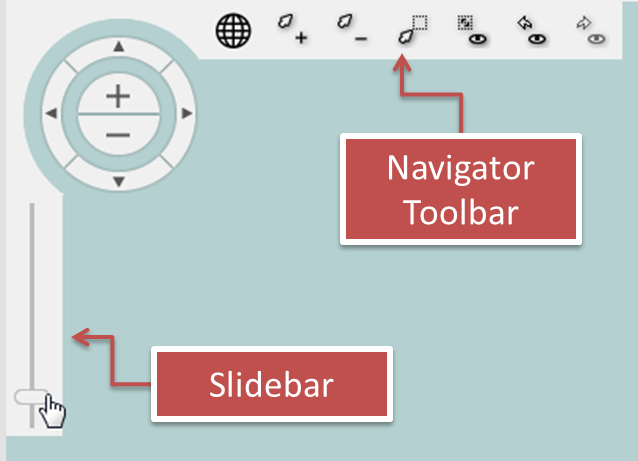
This section is valid for all product flavors.
Use the mouse to navigate the map in 3D mode. With the left mouse button pressed, you can move along the 3D scene. To rotate the 3D scene (change the view direction or the view angle), move the mouse with the right mouse button pressed. You can also navigate the 3D scene with the navigator controls the same way you would with maps in the 2D view.
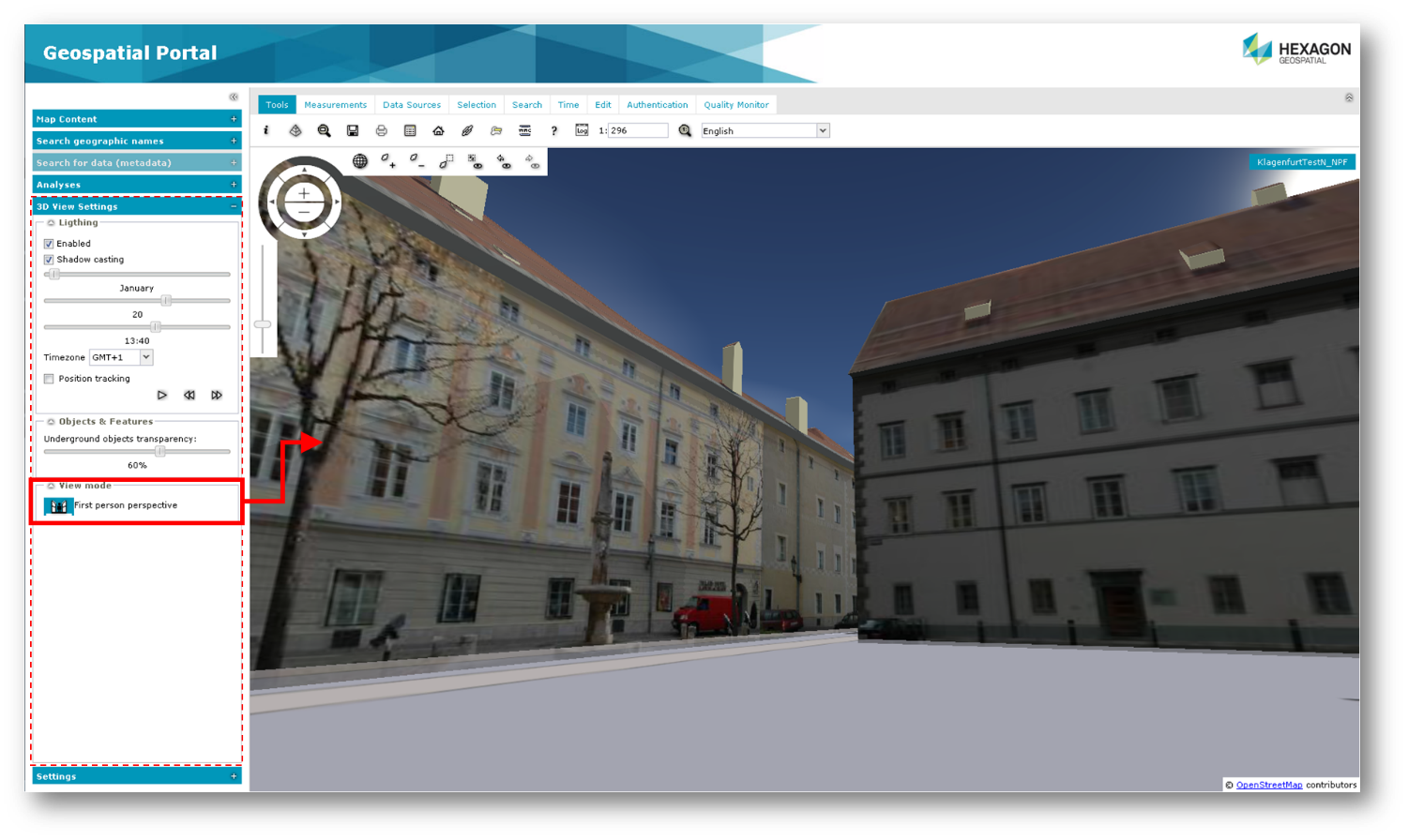
Geospatial Portal’s 3D view now offers a first person perspective mode.
To enable first person perspective in Geospatial Portal: