 This section is valid for the following flavors: Geospatial Portal, GeoMedia WebMap Advantage and GeoMedia WebMap Professional.
 This section is valid for the following flavors: Geospatial Portal, GeoMedia WebMap Advantage and GeoMedia WebMap Professional.
Catalog Web Service (CSW) lets you search for metadata in the database.
. This feature is available only in 2D view mode. This feature is not available in the apollo.aspx and apollopro.aspx layouts
To search for metadata:
The found metadata displays in the sidebar in the table below the search dialog box.
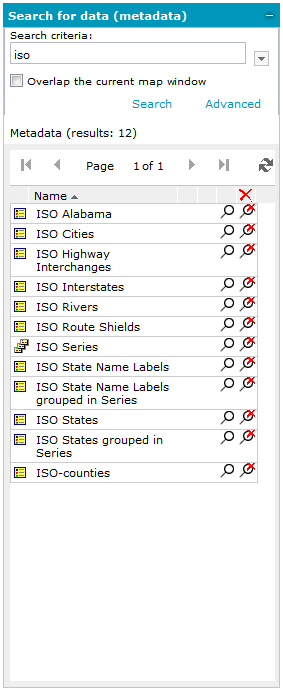
Icons next to the name of retrieved metadata show you what type of data is displayed. There are the following types and icons:
Icon |
Description |
|
Metadata for series |
|
Metadata for services |
|
Metadata for dataset |
You can perform the following actions in the table of results for metadata:
Icon |
Description |
|
Adds the selected service to the Map Content. |
|
Removes the selected service from the Map Content. |
|
Centers the map on the selected metadata and shows its range. |
|
Removes the selected metadata range from the map. |
Adding layers to a map is possible only for metadata of the service type. An exception may be metadata for the series and datasets, for which a link to the corresponding service is provided.
You can obtain detailed information about found metadata. Select an entry in the results table to display a new window that contains detailed information.
A right-click menu in the search dialog box lets you do the following:

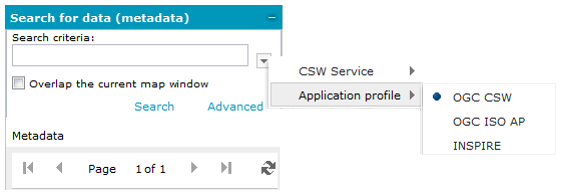
In order to search metadata using multiple parameters, click Advanced in the Search for data metadata tab.
A form opens on which you can provide a series of keywords, according to which data you want to search. The results of your search are displayed in the table in the sidebar.
The search form will differ depending on the selected metadata profile.



