Geospatial Portal gives users the opportunity to connect and use custom print services.
In order to use a custom print service:
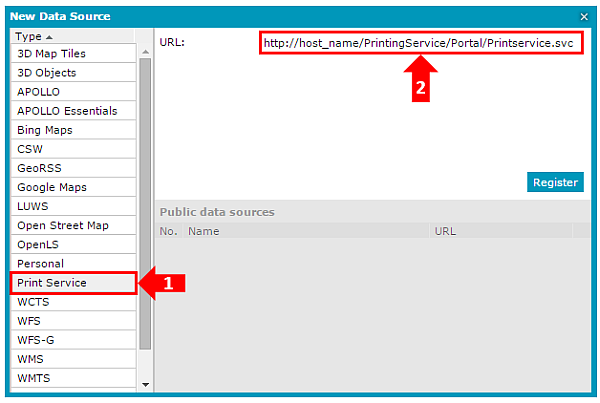
In the Data Sources tab, use the Define a data source command to register an external print service. In the New Data Sources dialog box, select the Print Service connector and provide the URL link to the service. Then click Register. In the image below, 1 denotes the print service and 2 denotes the data source Type.
A new external print service is displayed in the Data Sources window.
Set the map view you want to print in the map window.
On the Tools tab, click Print map.
The Print map dialog box and the translucent rectangle display.
In the Print map dialog box, set the options available for the current Print Service.