.
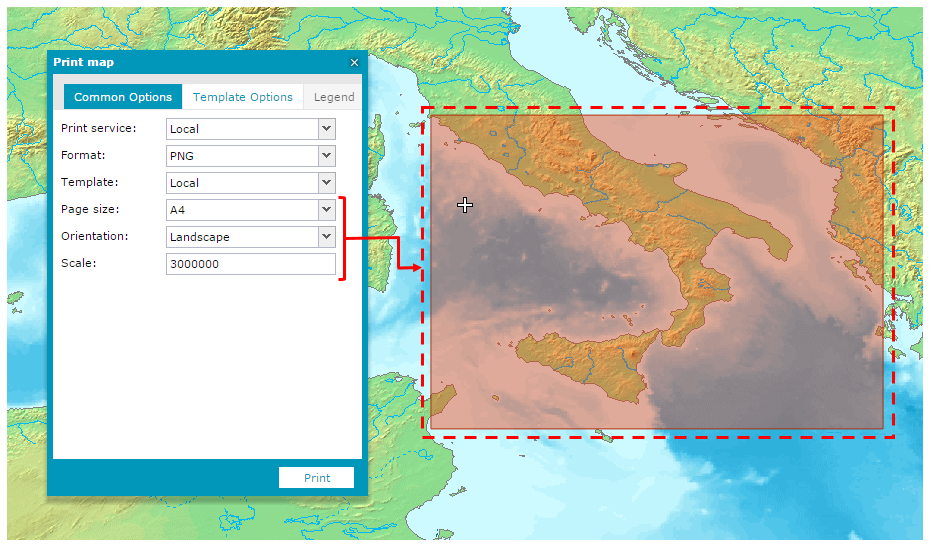
.- Common Option tab:
- Print service – Local for the Geospatial Portal internal printing.
- Format – Graphic file type into which the map you are printing will be saved. The PNG file format is available with Local Print Service.
- Template – Print template. One (Local) predefined template is available.
- Page size – Select the page size from available sizes in the pull-down list.
- Orientation – Options include Landscape or Portrait.
- Scale – Provide the scale for the printed map.
- Template Options tab:
- DPI – Set print resolution in DPI units. Using Local Print Service, the map can be printed with 150 or 96 DPI resolution.
 The rectangle (printed area) size changes when you change the page size, orientation, or scale.