 This section is valid for the following flavors: Geospatial Portal, GeoMedia WebMap Advantage, GeoMedia WebMap Professional; GeoMedia WebMap Essentials; ERDAS Apollo Advantage; ERDAS Apollo Professional.
 This section is valid for the following flavors: Geospatial Portal, GeoMedia WebMap Advantage, GeoMedia WebMap Professional; GeoMedia WebMap Essentials; ERDAS Apollo Advantage; ERDAS Apollo Professional.
In the data window, you can display feature classes and attribute values for selected data sources (for example: WebMap Publisher, WFS, or PSS).
 on the Tools tab.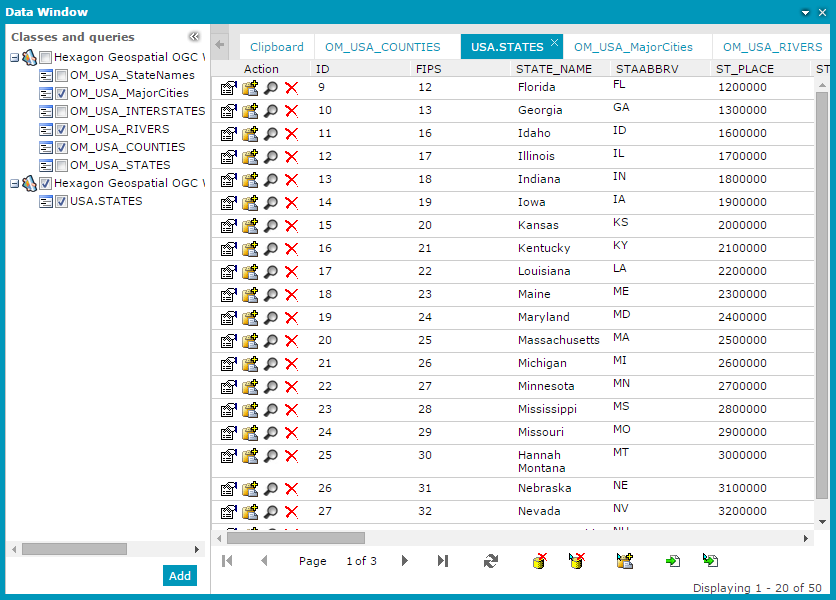
Data in the data window is presented in tabular form. One window of data can contain many tabs with displayed data. Data for one class is presented on a single tab.
Each data view lets you:
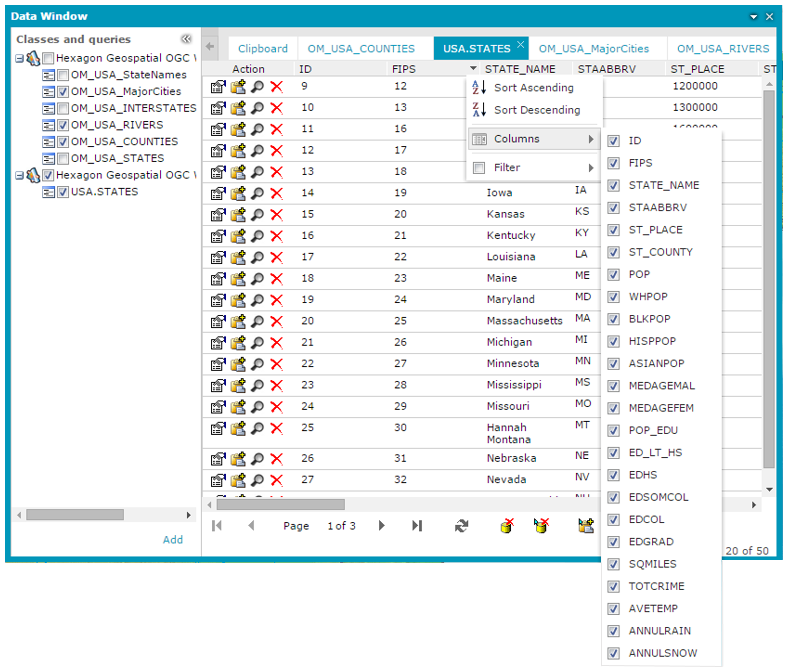
Use commands from the context menu for each column to sort the data and to select columns to be displayed.
Selecting records in the data window will automatically highlight the corresponding objects on the map, on condition that they have been previously displayed in the map window. Depending on the option you select in the Settings tab > For items in select set group, you can do the following:
In a data window you can also:
The following functions are grouped at the bottom of data window:
 .
. . To refresh the data window, click Refresh
  .
. or Export selected features to a file
  .
.For each tab of the data window, buttons to perform the following actions are located in the Action column:
 - Click to view the feature Properties window.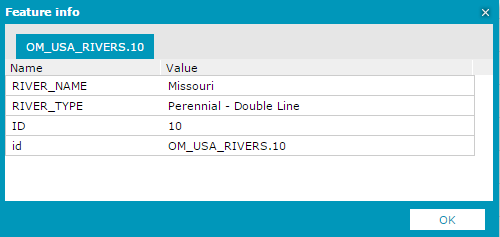
 - Click to add single features to the clipboard.
 - Click to zoom to the selected feature on the map.
 - Click to remove a selected feature from the database of connected service. Applies only to read-write data. For read-only data, this button is not visible in the Action column.
For some sources (for example, WFS), you can move features and query results to the clipboard. Features from the data window can be moved to the clipboard individually or in bulk.
Data in the clipboard is presented on the Clipboard tab. Records in the Clipboard are grouped in tables. All records from one feature class are presented in one table.
The following operations are possible for data in each table:
Removing objects:
 . Buttons used for removing objects are available for each table and can be applied only for data from the common table.
 .
. in the Action column.