. Move the cursor to the geometry you added. The cursor style changes to a cross hair, and that part of the geometry will be highlighted.
To remove a part of geometry:
. Move the cursor to the geometry you added. The cursor style changes to a cross hair, and that part of the geometry will be highlighted.Insert text allows you to insert text on the map. Text on the map can be placed at any angle. The text feature class must be defined before you can insert text on the map.
To insert text on the map:
 tool from the Edit tab. The Insert text dialog box appears.
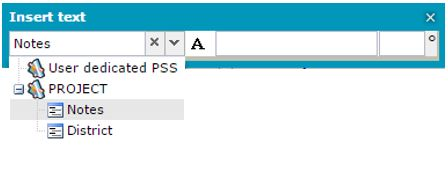


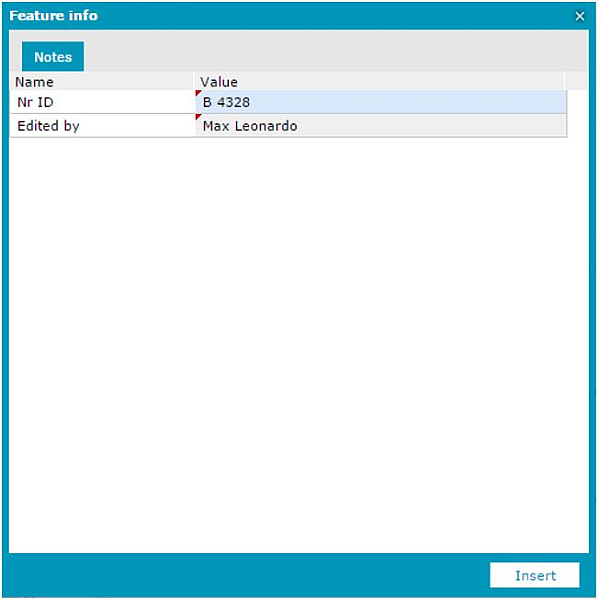
Click Insert to add text on the map.
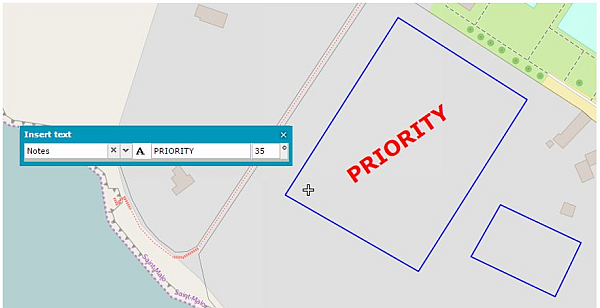
 on the Insert text dialog to close the dialog box. Right click to quit from the text inserting mode.
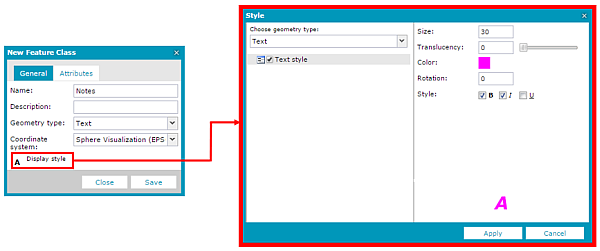
 The font size and color for the text can be defined in Map Content for a displayed layer using the Style properties dialog box. The default text style (for personal service) can be defined when a feature class is created.